
Tech updates
Share this
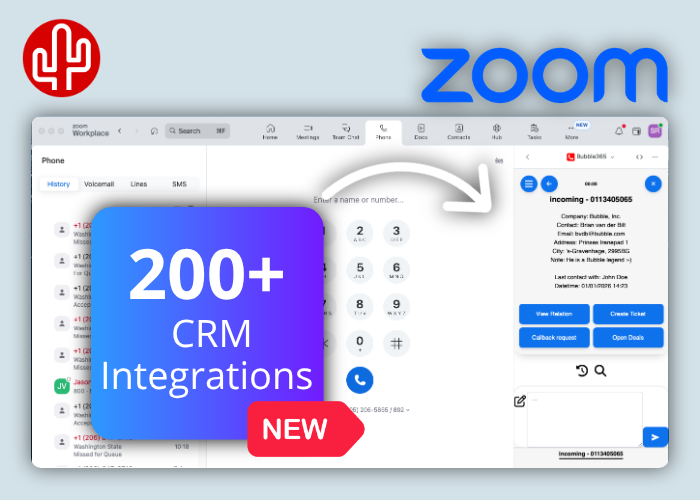
As the first CRM integrator in the world, we add more than 200 CRM integrations to Zoom Phone. This brings CRM information directly to the place where communication happens. What makes this especially powerful is that we not only support the Zoom integration for all Bubble and Bubble365 apps, but at the same time introduce Bubble365 for Zoom: a fully integrated app within Zoom itself, delivering a native user experience. This Zoom-certified app is available directly via the Zoom App Marketplace. Experience the power of CRM integrations — now fully integrated into Zoom.
Bubble365 for Zoom
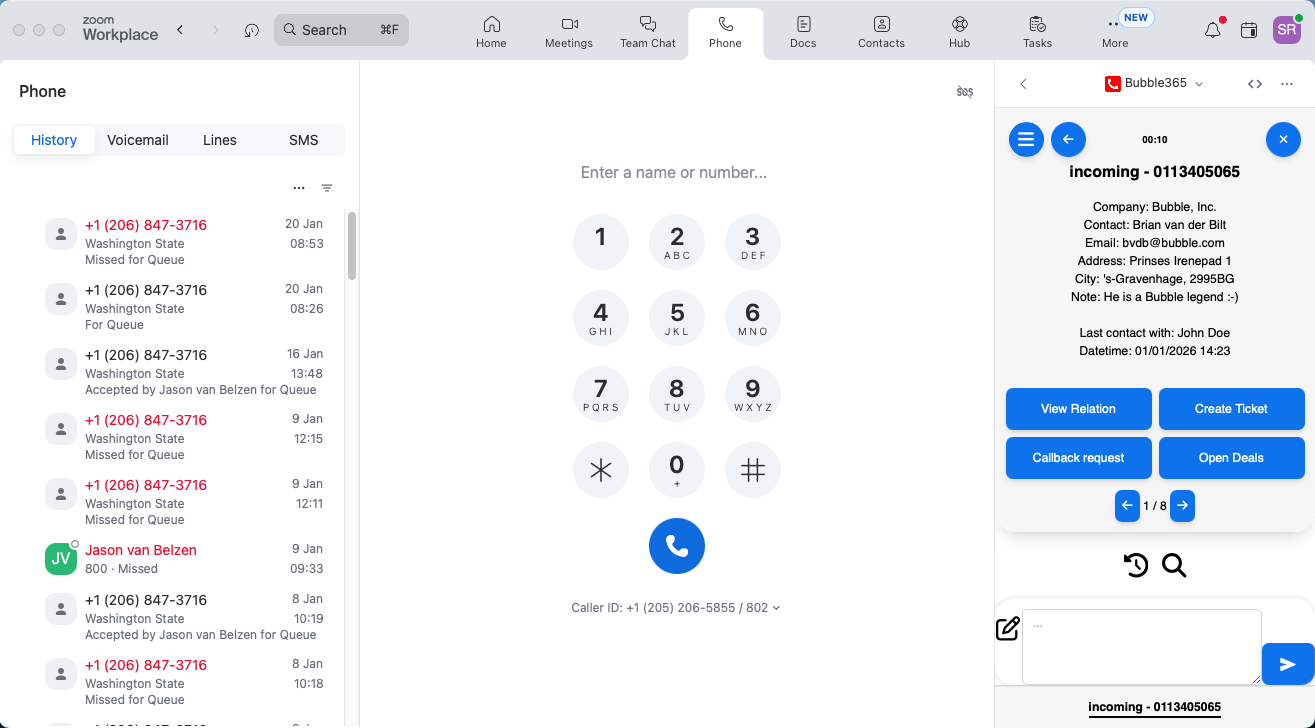
This integration ensures that all relevant customer information is displayed immediately when a phone call is received. From the overview that appears, which can be fully customized to the user’s preferences, the desired action can be performed right away. In addition to CRM-specific actions, several useful standard buttons are available, such as custom actions, email, call-back requests, WhatsApp, or Microsoft Teams Chat.
If supported by the CRM application, it is possible after the call to automatically or manually push call logging, optionally including a call note and the Zoom AI Call Summary, to the activity timeline of a contact in the CRM. Do you work with multiple CRM applications? No problem: as a user, you can have multiple CRM applications connected at the same time, without any impact on pricing.
SearchBar
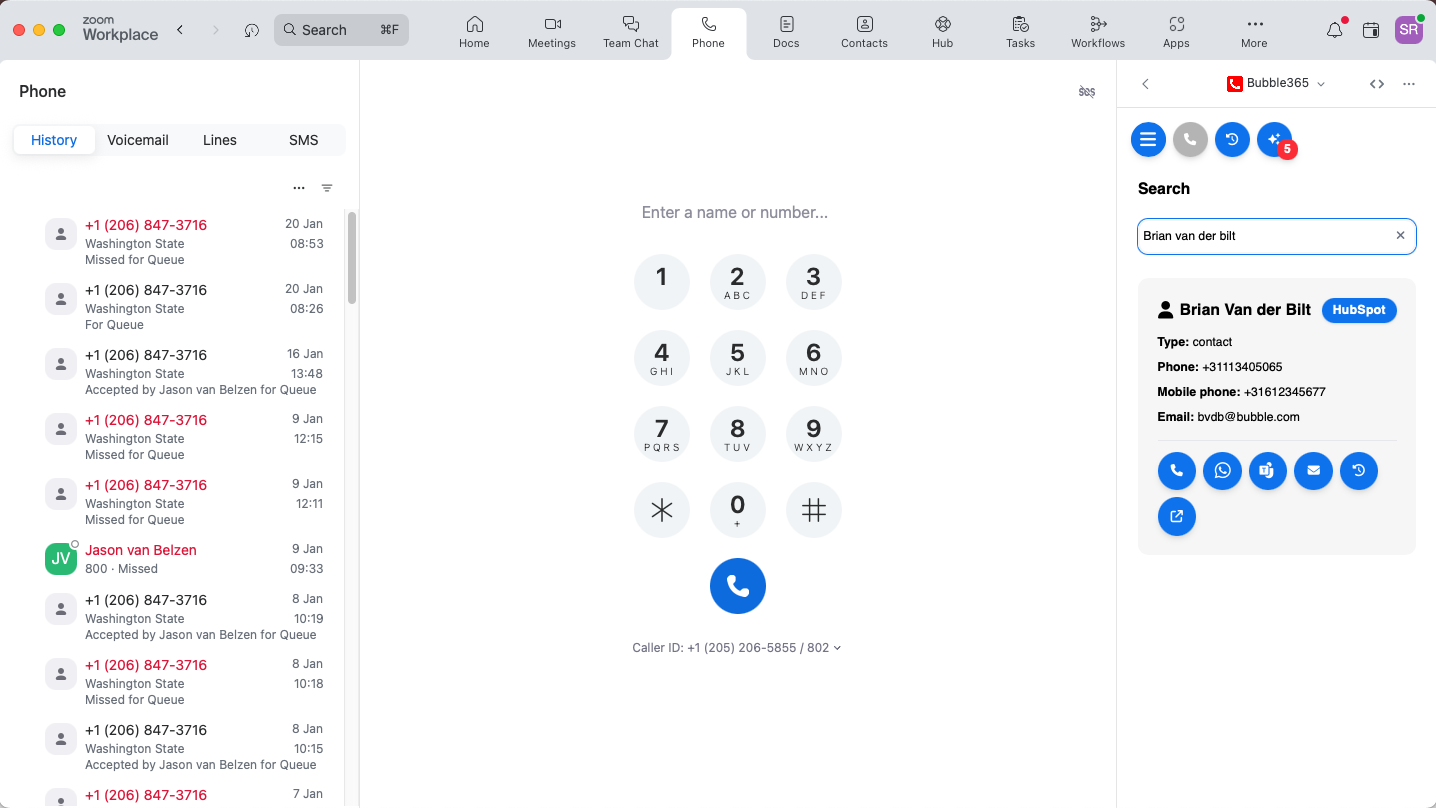
But there’s more! In addition to the notification in Zoom during an incoming call, it is also possible to search through all your CRM contacts via the SearchBar, optionally combined from multiple sources (check if your CRM supports this feature here). From the search results, you can perform various actions, such as:
- Start an outgoing phone call
- Send a WhatsApp message
- Send a Microsoft Teams chat message
- Send an email
- Open the call history
- Open the contact in CRM
Multi-result
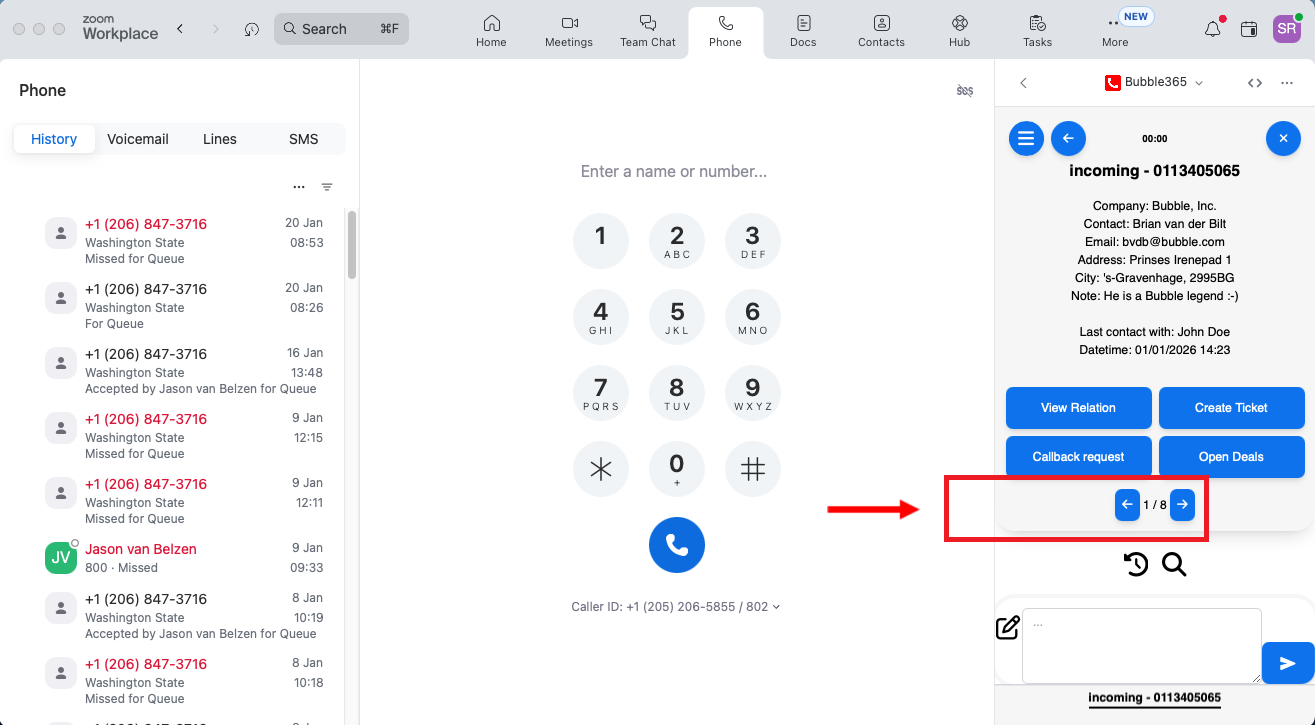
If multiple results are found for the caller’s phone number, you can use the arrow keys (located below the action buttons) to navigate to the next result. If you want to influence which contact is displayed first, you can configure this in the webconfigurator using the advanced filter function.
Call Waiting
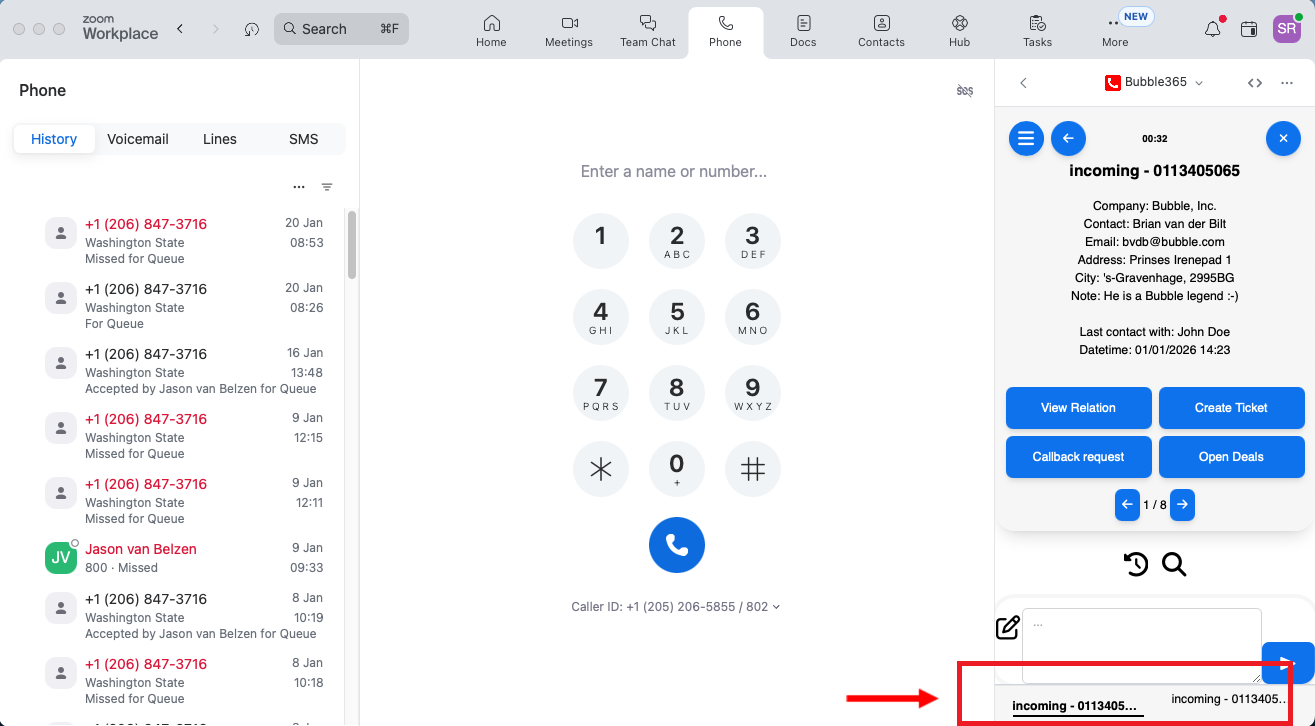
If additional calls come in while you are already on a call, they will appear at the bottom of the pop-up notification, allowing you to easily switch between calls with a single click.
Call History
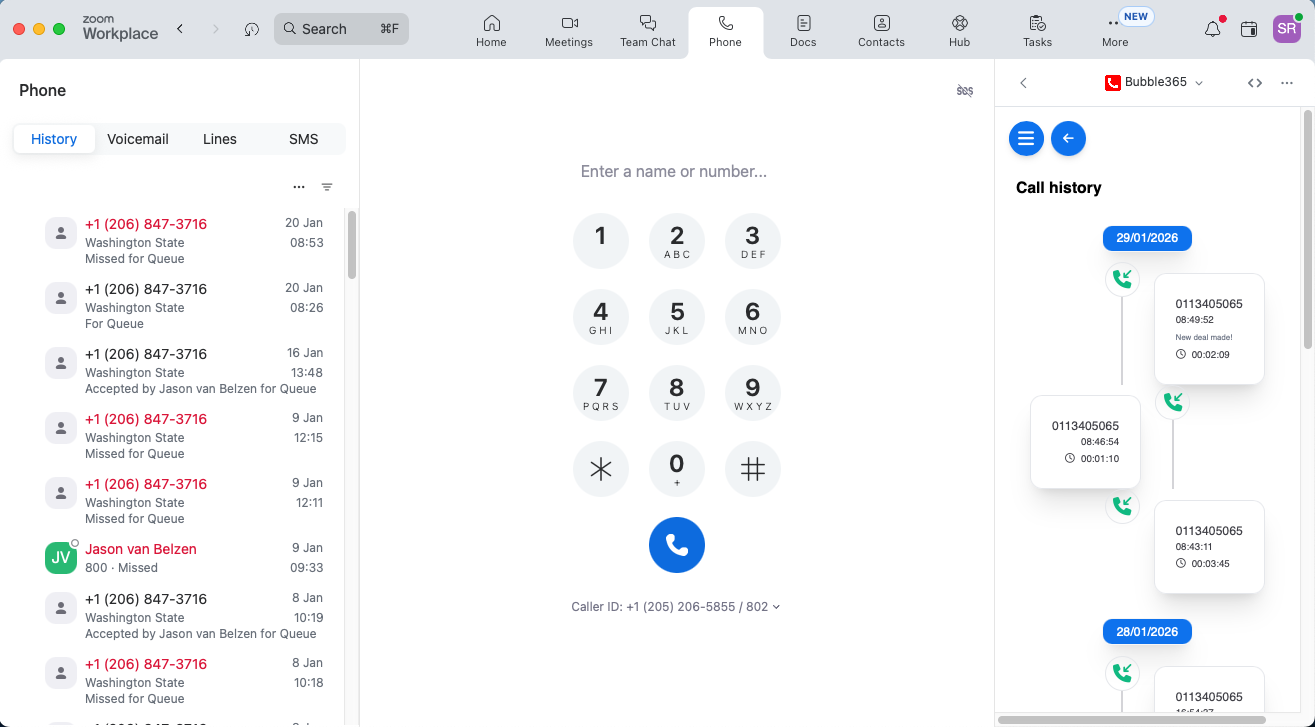
Based on your personal call history, you can start a call with a single click on a phone number. Via the timeline, a pop-up notification opens showing all relevant information linked to that number. During a call, you can also easily see which colleague last had contact with the caller.
Call Logging
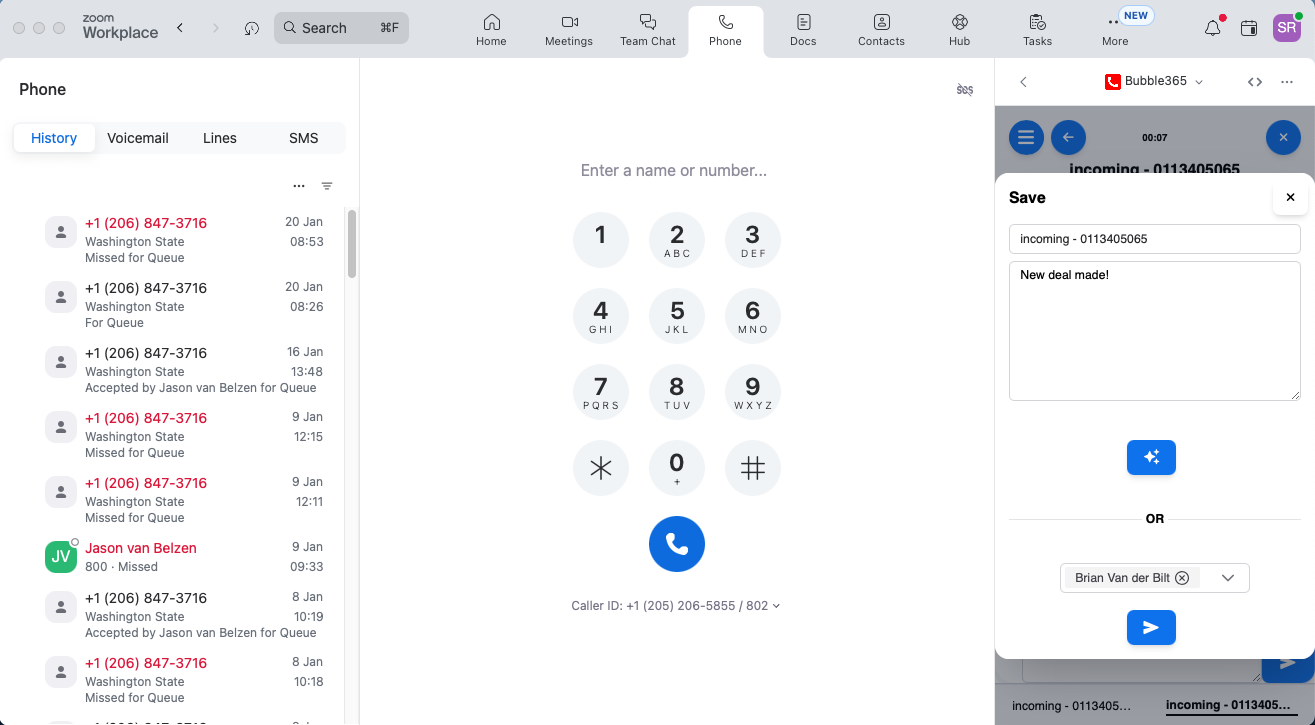
From the notification, you can immediately write a call note, which is registered under the correct contact in the CRM after the call ends (check here if your CRM supports this feature). If no call note is created, it is still possible to automatically add a call log to the contact record, including call details such as the time, duration, and the employee involved.
AI Call Summaries
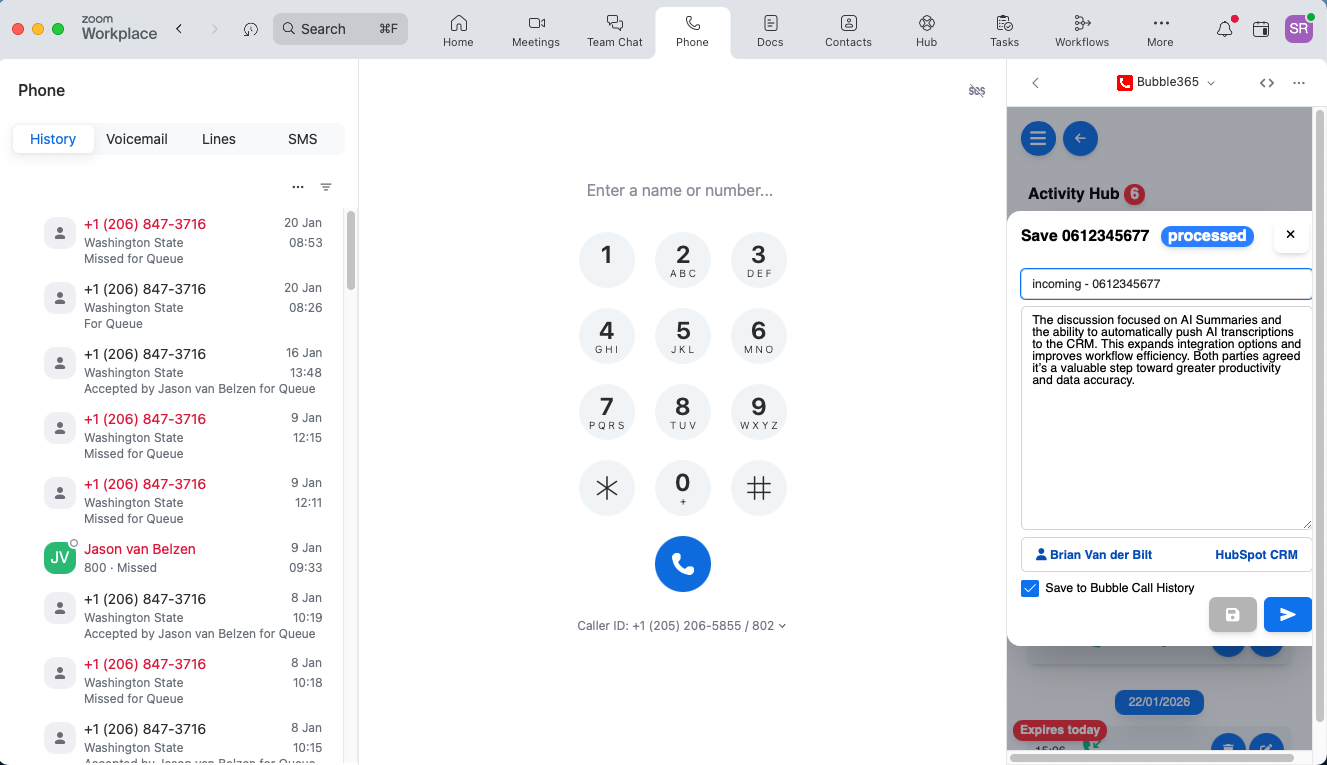
From the Activity Hub, Zoom AI Summaries can be written directly to the activity timeline of a contact in the CRM, together with the call log (check here if your CRM supports this feature). This can be done automatically or manually, depending on your settings. When manual processing is enabled, or when multiple contacts share the same phone number, you can easily select the correct contact. If a contact does not yet exist in the CRM, you can create one first to ensure proper linking. You can also view and edit the transcript before it is sent to the CRM, or choose to delete it entirely.
Customer Data
When developing our applications, we adhere to the vision that customer data should be accessed responsibly. For us, there is only one acceptable way: real-time communication with the CRM, without storing customer data outside the CRM application itself. This ensures that customers and partners maintain full control over where their CRM data resides, minimizing the risk of data breaches. Unfortunately, this approach is not yet standard in the world of integrations, and we still see data being synced to external storage sources outside the CRM. This is why a Red Cactus partner has a significant competitive advantage — especially with customers who value careful and responsible handling of CRM data.
Free Trial
Red Cactus partners enjoy another major benefit: they can offer their customers a test license for 30 days (up to 5 users), allowing customers to try the solution completely free of charge.
More Information
Click here for more information about the Bubble365 for Zoom app or the generic Zoom integration for our other Bubble and Bubble365 applications.